
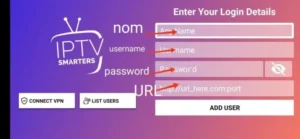
1- Download the IPTV Smarters Pro app from the App Store. Simply search for ‘IPTV Smarters’ in the App Store, and it will appear.

2- Select the connection via the XTREAM Codes API to avoid entering M3U files.
3- Enter the login details sent to you by email and click ADD USER to connect.
1. Open the App Store on your device and search for ‘Hot Player.’

2. In the Hot Player app, go to the ‘Settings’ or ‘Profile’ section. Your MAC address will be displayed in the app.
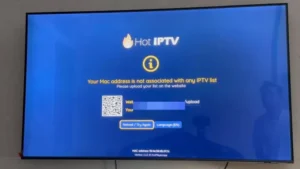
3. Now go to the website: https://hotplayer.app/upload
Then enter the MAC address (device ID).
4.Select the M3U link to upload your data. The details will be sent to your email address.
5. Restart your app and enjoy!
1. Open the App Store on your device and search for ‘Vu Player Pro.’

2. In the Vu Player Pro app, go to the ‘Settings’ or ‘Profile’ section. Your MAC address and device code will be displayed in the app.
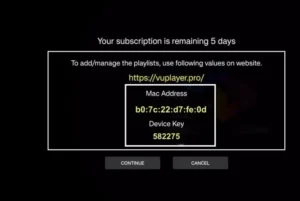
3. Now go to the website: https://vuplayer.pro/login
And enter the MAC address (device ID) and the device key (device key).
4. Select the M3U link or Xtream Code to upload your details. The information will be sent to your email address.
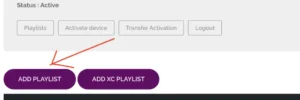
5. Restart your app and enjoy!
1. Open the App Store on your device and search for ‘IBO Player.’

2. Now open the app and activate it using the device ID and device key on the website provided within the app.
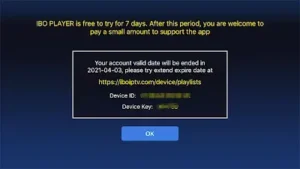
3. Now go to the website and enter the MAC address (Device ID) and the device key (Device Key).
4. Select the M3U link or Xtream Code to upload your details. The information will be sent to your email address.
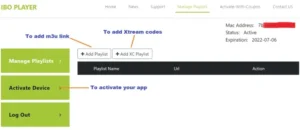
5. Restart your app and enjoy!
1. Install Set TV from the App Store on your Smart TV.

2. Open the IPTV Player app and check the box under the MAC address displayed on the screen.
3. Go to the SetIPTV activation page and enter your MAC address.
https://setsysteme.com/set.app
4. Enter the MAC address and click the hash (#) symbol to confirm.
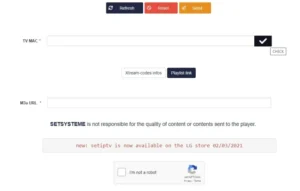
5. After verification, enter the M3U URL provided by your IPTV provider.
6. Then click ‘Send’ to download the M3U URL to your device.
7. Restart the app and start streaming content from your Pinibuy IPTV provider.
